
What if you could track movements around your home and receive real-time alerts on your phone? Xfinity Wi-Fi Motion helps you stay informed, adding an extra layer of home awareness for your peace of mind.
Xfinity Wi-Fi motion detection may come in handy for a parent who wants to know when their teenager gets home, someone who’d like to catch their pet red-handed while they attempt to raid the cabinets, or anyone who suspects that a person (or creature) has illegal access to their space.
Sounds useful? Read on to learn more about how this works.
What is Wi-Fi Motion?
Wi-Fi motion is a feature available to Xfinity Internet customers who are renting an xFi gateway (XB7 model or later). You do not have to pay extra to activate or use this feature, but it is not available for older models or third-party routers.
The feature can be enabled or disabled from the Xfinity mobile app. If you choose to activate the feature, you will receive push notifications from the app whenever motion is detected in the covered areas.
Disclaimer:
Xfinity Wi-Fi Motion is not a home security service. It is simply provided as part of your internet subscription. is not professionally monitored.
Consumer data associated with the feature is not formally monitored and subject to the Xfinity residential services agreement and xfinity.com/privacy/policy.
Since the Xfinity gateway/router serves as a motion detector, its placement and the layout + size + materials of your house may affect functionality. The location of Wi-Fi-connected devices and Wi-Fi extenders also impacts connectivity/signal strength, so they too may limit motion detection capabilities.
How Wi-Fi Motion Works with Smart Homes?
Xfinity Wi-Fi Motion will only work in parts of your smart home that receive strong Wi-Fi signals. Your compatible advanced Xfinity gateway connects with up to three stationary smart appliances in the house that are always on.
Your gateway connected to the selected smart appliances forms a motion detection system. Motion is detected by the Wi-Fi signals travelling between the gateway and connected devices – you can picture the motion-sensing area as shown below:
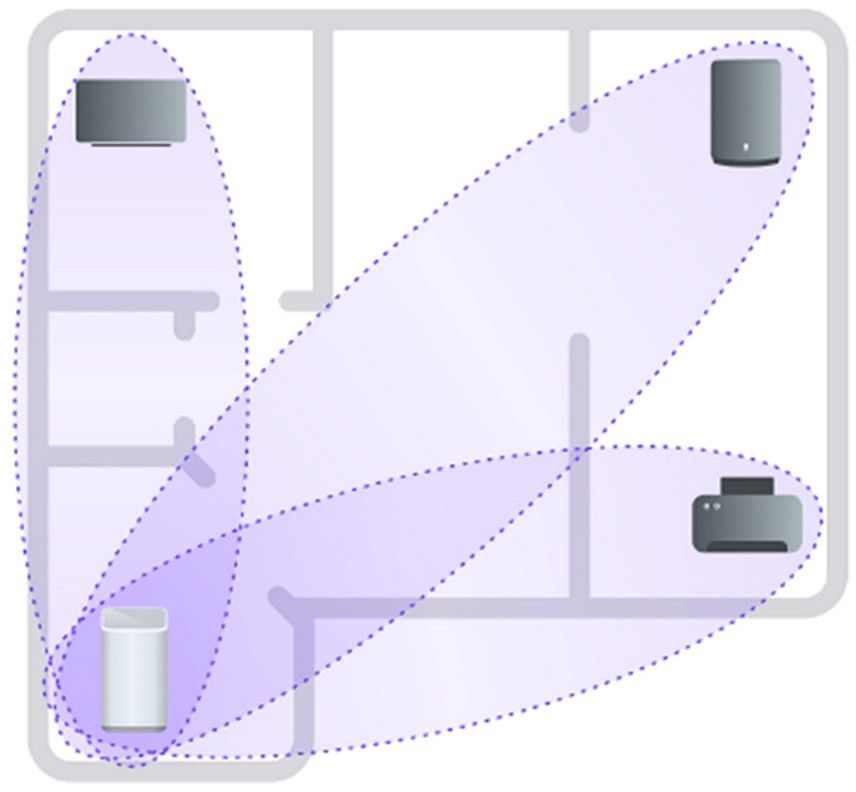
You will receive alerts on your phone whenever motion in the covered area disrupts the Wi-Fi signals. Motion outside the covered area will not be detected, which is why placement of the gateway and location of the connected appliances are key.
Turn your apartment into a safe space by pairing Xfinity Internet and Home Security Services
Browse Xfinity Bundles to Learn More
Guidelines to Set Up Your Devices for Xfinity Wi-Fi Motion
- Devices or appliances that work best for the Wi-Fi motion detection system are always powered on (devices that go to sleep or turn off automatically are not feasible).
- Mobile devices, such as smartphones, tablets, and laptops, are not compatible. Choose devices that are fixed or stationary at all times, such as a smart TV, fridge, or printer.
- Your preferred devices need to be connected via Wi-Fi; devices connected via Ethernet won’t be recognized.
- Select devices that are far away from each other to cover the maximum surface area.
How to Activate Xfinity Wi-Fi Motion
The Xfinity Wi-Fi Motion feature is not functional by default, so you can activate it by following these steps:
- Open the Xfinity app on your smartphone and head over to the Home
- Look for a box/awareness card for Wi-Fi motion and turn on the feature from there.
- Read the info that pops up on the screen and tap the Get Started
- Go through the Xfinity Residential Services Agreement & Xfinity Privacy Policy, check the I agree box, and tap Continue.
- You’ll be navigated to a list of connected devices/appliances in your home that are suitable for the Wi-Fi motion detection system.
- Depending on the number of usable devices, you may choose the Use recommended devices option or manually select up to three.
- Following selection, press Next to proceed. If no suitable devices are found on the network, you’ll see some additional info and will be required to try again.
Here’s what you can do to remedy an unsuccessful attempt:
Check that any devices or smart appliances you’d like to connect are powered on and connected to the network. At times, weak Wi-Fi signals, low-power mode, or sleep mode can render devices unsuitable.
You may try moving the gateway or devices to adjust Wi-Fi range and signal strength. Moreover, devices connected to third-party Wi-Fi extenders are not supported for this feature.
8. If everything goes well, activation will be in progress, and you’ll see a loading screen.
9. After completion, you’ll see a confirmation message telling you that the Wi-Fi motion detection feature is on.
10. Select Done and try testing this feature
How to Use Xfinity Wi-Fi Motion
When you’re done setting up your Wi-Fi motion detection system, you can track activity through the Xfinity mobile app. Go to the Home tab to see recent motion-sensing data; here, you can select different Wi-Fi motion events to view details or visual data.
Your Xfinity Wi-Fi motion detection setup may pick up various unnecessary movements throughout the day, such as a robot vacuum cleaner or a small pet roaming around the house. You have the option to adjust the sensitivity level in case this becomes disturbing.
Follow these steps to manage sensitivity settings:
- Select the Wi-Fi Motion status tile on the Security tab
- Tap the gear icon on the top-right corner of the Wi-Fi Motion Live View screen to be directed to the Wi-Fi Motion Settings
- Select Motion Sensitivity and toggle the button to the desired level of sensitivity, i.e., high, low, or medium.
If your settings are on High motion sensitivity, you can turn on the Exclude Small Pets feature. To filter out even more unwanted notifications, turn off the Exclude Small Pets feature and shift to Medium or Low motion sensitivity instead.
Note:
Medium sensitivity is recommended for homes that share walls with neighbors as in an apartment complex. Low sensitivity will only detect notably large movements, so it’s possible that you miss a significant motion.
Final Thoughts: What if I don’t like the Xfinity Wi-Fi Motion Feature?
The Xfinity Wi-Fi Motion feature may sound nice in theory, but practical results can vary. In case the feature does not live up to your standards or seems like a nuisance, you can deactivate it in no time – here’s how:
- Go to the Home tab on the Xfinity app.
- Tap on the Motion sensing status
- Tap on the gear
- Select Remove Wi-Fi Motion, and you’re done.
FAQs
Xfinity Wi-Fi motion is not a professional security system, but it is a useful feature to keep track of activity or movement inside your home.
You can connect up to three smart devices to use with the Xfinity Motion feature.
You will only see stationary smart devices or appliances that remain powered on. Mobile devices or appliances that enter sleep mode are not eligible.
On This Page

Need Help?
Let's find Internet services available in your area




Robert is a dedicated and knowledgeable author, an SEO expert with a passion for all things tech. He has a keen eye for detail, allowing him to write interesting blogs that are informative and engaging for readers. He has extensive knowledge of internet, TV, and phone pricing and plans, and has created numerous how-to guides to help users make informed decisions. As a tech geek and TV buff, he is always up-to-date on the latest trends and developments in the industry, making his content always fresh and relevant.
Robert